Crop Image Online
Crop images with a simple drag-and-resize box. Choose freeform or ratio presets, then export in JPG, PNG, or WebP.
{{ imageFile.name }}
Drag to move the frame or its corner to resize. With the frame focused, use arrow keys to move and Shift + arrows to resize.
:
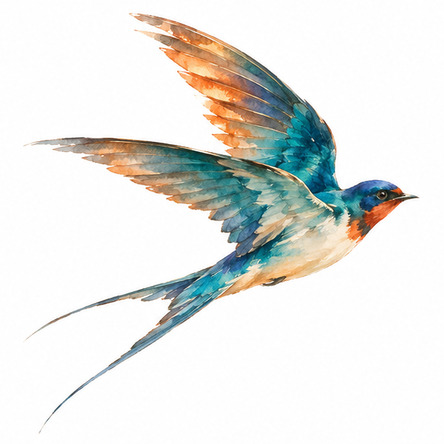
Crop around the wing
Frame the entire swallow or zoom in on its copper-tipped feathers.Ready
Apply crop to refresh the preview
Once you like the crop box on the left, apply it and download the cropped image.
Crop summary
Review the cropped image before download
{{ result ? 'Your cropped image is ready to download.' : 'Select the area to keep, apply the crop, and download your image.' }}
- Source: {{ imageFile ? imageFile.name : "Waiting for image" }}
- Output format: {{ result ? result.format : outputFormat.toUpperCase() }}
- Status: {{ result ? result.name : "Appears after you apply the crop" }}
{{ result ? 'Download the cropped image.' : 'The cropped image appears here after you apply the crop.' }}
How to crop an image
Choose an image
Drop an image and set the crop area.
Download your crop
Export the cropped image in JPG, PNG, or WebP.
Freeform or fixed ratios
Crop to 1:1, 4:5, or 16:9 presets with easy controls.
Drag-and-resize crop box
Move the crop area and resize it on desktop or mobile.
JPG, PNG, and WebP exports
Download the crop in the format you need.
Live preview
See the crop area update before you export.
Frequently Asked Questions
Can I crop to a specific aspect ratio?
Yes. Use the 1:1, 4:5, or 16:9 preset ratios, or keep it freeform.
Does cropping change image quality?
Cropping removes pixels outside the selection. Export quality depends on the format and quality setting.
Which formats can I export?
You can export cropped images as JPG, PNG, or WebP.
